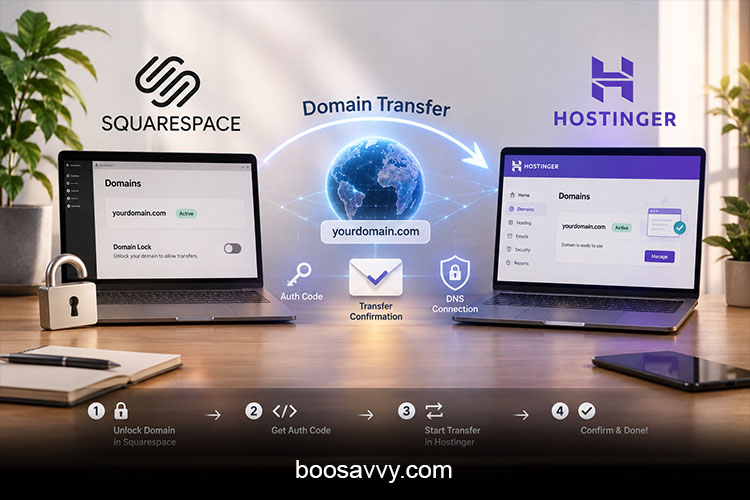
Moving your domain from one registrar to another sounds like a very technical exercise but in reality it’s just a matter of clicking a few settings and waiting for the emails. Whether you’re moving from Squarespace to cheaper hosting, switching to a different website platform, or indeed keeping everything in one place, this guide walks you through the entire process of moving your domain from Squarespace to Hostinger. You’ll find out what you need to check before you start, exactly what the steps are, how long it takes, what it costs and how to avoid the mistakes that can see the whole thing go horribly wrong.
Also Read: Best Hosting Company for WordPress: 7 Reliable Providers You Should Know
Can you transfer a domain from Squarespace to Hostinger?
Yes, With a Few Conditions
You can move a domain registered via Squarespace to Hostinger as long as it’s active, older than 60 days, unlocked, and registered to an owner email address that you can still access. A Squarespace domain transfer is just a registrar to registrar transfer so the same rules apply as for any other domain.
Why People Make the Switch
Common reasons would be to consolidate your hosting and domains into one dashboard, to save on your annual cost, to get out of a platform you’re locked into or to move your site over to WordPress or some other builder. If you’re going to be hosting on Hostinger anyway, having the domain there means you’ve got your renewals, your DNS, and your email all in one place.
Domain Transfer vs Domain Connection: what’s the difference?
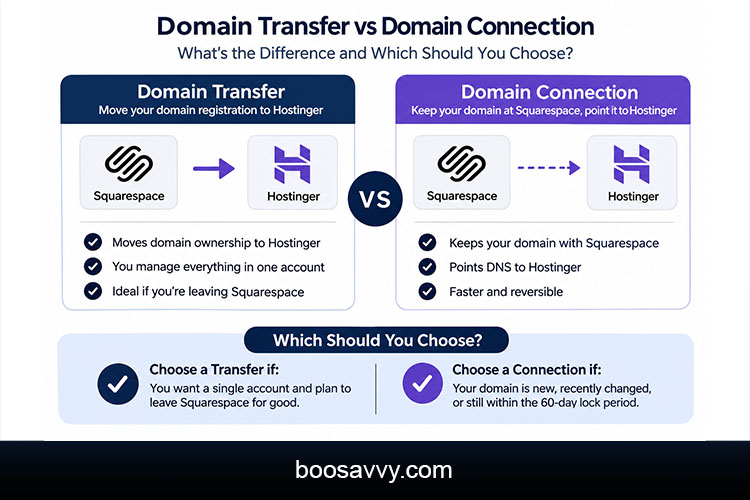
What a Transfer Does
A transfer will move the registration of the domain to Hostinger. Hostinger then becomes the registrar, you pay Hostinger for the renewals, and you manage the domain from your Hostinger account.
What a Connection Does
A connection is removed from Squarespace and the domain’s DNS or nameservers are pointed at Hostinger. The site can then run on Hostinger whilst Squarespace remains the registrar. Much quicker and much easier to reverse for anyone who simply want their site moved.
Which Should You Choose?
Choose a transfer if you’re after a single account and you’re going to be leaving Squarespace for good. Choose a connection if the domain is new, has just changed or is still in the 60 day lock period.
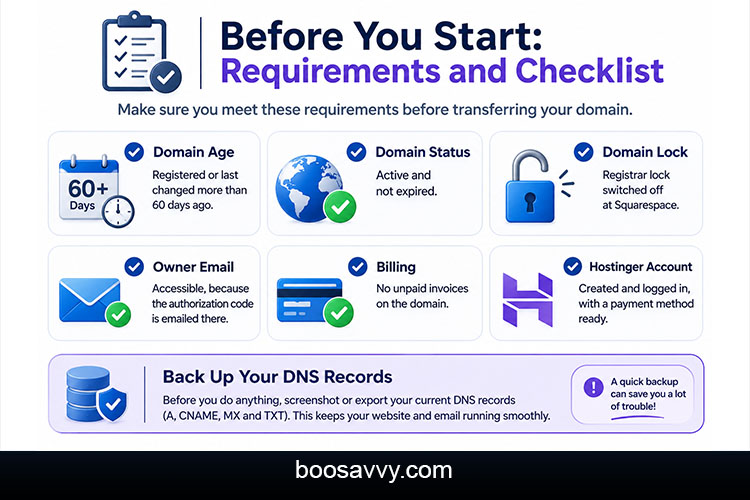
Before You Start: Requirements and Checklist
What Hostinger and ICANN Rules Require
Domains are generally locked for transfer for 60 days after registration (and also after certain contact detail changes) under ICANN rules. Skipping the checklist below is the most common reason transfers get delayed.
| Domain age | Registered or last changed more than 60 days ago |
| Domain status | Active and not expired |
| Domain lock | Registrar lock switched off at Squarespace |
| Owner email | Accessible, because the authorization code is emailed there |
| Billing | No unpaid invoices on the domain |
| Hostinger account | Created and logged in, with a payment method ready |
Back Up Your DNS Records
Before you do anything else take a screenshot or export your current DNS records (A, CNAME, MX and TXT). If you’re running your email via Google Workspace or another service through Squarespace, you’ll need those records to keep your email working once you’ve moved.
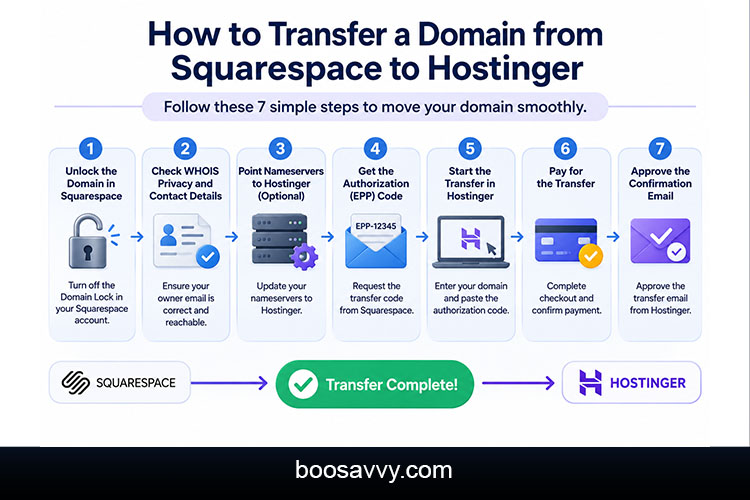
How to Transfer a Domain from Squarespace to Hostinger Step by Step
Just go through the 7 steps in order. The whole thing takes only a few minutes of your time, most of it being spent waiting for your various approvals.
Step 1: Unlock the Domain in Squarespace
Access your Squarespace account, go to the Domains dashboard, and choose the domain you plan to move. Switch the Domain Lock off. If you can’t switch it off, the domain isn’t eligible at this point (it’s likely in the 60-day window), and you’ll need to wait.
Step 2: Check WHOIS Privacy and Contact Details
Confirm the owner email on file is correct and working. Some Hostinger guides suggest turning WHOIS privacy off at this stage to ensure the confirmation emails get to you. If you do go ahead and change the contact details at this stage, be aware that any changes to the owner details can trigger a new 60-day transfer lock, so try to avoid making any changes you don’t absolutely need to.
Step 3: Point Your Nameservers to Hostinger (Optional but Helpful)
If your site is going to be on Hostinger then you’ll need to update the domain’s nameservers to Hostinger’s prior to the transfer. Hostinger’s own guide makes this recommendation as it allows the DNS changes to propagate in the background and keeps the downtime to a minimum.
Step 4: Get the Authorization (EPP) Code
The authorisation code (also known as an EPP code or transfer key) is the proof that you’re the owner of the domain. Open the Domains panel in Squarespace, select the three-dot menu, and click the option to obtain your domain transfer authorization code. You may be asked to re-authenticate. The code is emailed to the domain owner and Hostinger note that it can take up to 48 hours to arrive.
Step 5: Start the Transfer in Hostinger
Log in to hPanel, go to Domains and select ‘Transfer an existing domain’. Enter your domain name and click Transfer. Paste in your auth code exactly as you received it (it’s case sensitive) and you’ll be safe from any typos by just copying it.
Step 6: Pay for the Transfer
Full checkout. The fee includes a one-year renewal, which is added to your domain’s current expiry date so you’re not losing out on the time you’ve already paid for. The cost will be dependent on the domain extension.
Step 7: Approve the Confirmation Email
Hostinger and the registry will email the domain owner to confirm the transfer. You’ll need to approve that straight away as if you don’t then the transfer can be held up. You can of course monitor the progress under Domains > Transfers and it will change to Completed when the transfer is complete.
What does it cost to transfer a domain to Hostinger?
Transfer Pricing
Hostinger price transfers by domain extension with some extensions starting as low as $0.99 a year and some of them including WHOIS privacy. The more popular extensions (like .com) will generally be in the normal annual renewal bracket so you’ll need to check the checkout page to see the exact total.
Watch for the Free Domain Catch
If your Squarespace plan came with a free first-year domain, you can still transfer that (the free offer of course doesn’t carry over to Hostinger so you’ll be charged at regular rates on any future renewals). It’s also worth bearing in mind whether your Squarespace plan is due to renew any time soon as transferring the domain doesn’t cancel your website plan.
How long does a domain transfer take?
Plan for circa 5-7 days from start to finish. You can get the code immediately, it may take up to 2 days to get it and the transfer itself generally takes 5-7 days once you’ve approved it. Domains can’t be pushed through the registry approval period so you need to be starting at least 2 weeks prior to the domain expiring or prior to launch.
A typical timeline looks like this:
- Day 0: Unlock the domain and request the code
- Day 0–2: Receive the code in the owner’s email
- Day 1–2: Start the transfer at Hostinger and pay
- Day 2–3: Approve the confirmation email
- Day 3–7: Transfer completes, and the status shows Completed
Protecting Your Website and Email During the Transfer
Keep Your Website Online
A transfer in itself shouldn’t take your site down as the DNS settings will normally carry on. The problem comes if you’re changing nameservers or if your site is on Squarespace and the domain is pointing at something else. You should copy or rebuild your site prior to changing nameservers.
Keep Email Working
Email records (MX, SPF, DKIM) are all in your DNS. Once the transfer has been completed, go and compare Hostinger’s DNS zone with your existing records and recreate any that are missing. Test sending and receiving a message on the same day.
Common Problems and How to Fix Them
Most of the delays are down to a very small number of causes. The following table lists the usual culprits and the quick fixes.
| Transfer is rejected | Domain still locked | Switch off Domain Lock in Squarespace and retry |
| Authorization code fails | Typo or expired code | Copy and paste exactly, or request a new code |
| No code email arrives | Wrong or inaccessible owner email | Check spam, update contact details, wait up to 48 hours |
| Transfer blocked | Domain under 60 days old or recent contact change | Wait until the lock expires |
| Transfer stalls | Confirmation email not approved | Check the owner inbox and approve it |
| Payment issue | Unpaid invoice or failed charge | Resolve billing, then restart |
After the Transfer: What to Do Next
Verify Everything
Once the status shows as Completed, go and confirm that the domain is in your Hostinger account and that your website and email still work. Have a look at your DNS zone to ensure there are no missing records.
Update Settings
Turn auto-renew on so you don’t lose the domain, turn on WHOIS privacy if it’s not already on (you’ll want that), and make sure the correct contact email is on file. If you’re planning to cancel Squarespace then just wait until the transfer is complete before doing so.
Moving Your Website Too
Domain and Website Are Separate
Transferring a domain doesn’t move your website. If you’re on Squarespace you’ll need to rebuild or migrate your site separately (e.g. to WordPress or Hostinger’s website builder). Squarespace exports are very limited so you’ll need to allow time to recreate your pages and content.
Order of Operations
The safest approach is to build the new site up on Hostinger first, test it on a temporary address and then point the domain over to it. That way the visitors never see a broken page.
Pro Tips for a Smooth Transfer
- Start early, ideally 15 to 30 days before the domain expires
- Avoid changing owner details just before transferring
- Use copy and paste for the authorization code
- Keep your old site live until the new one is tested
- Turn on auto-renew in Hostinger after the transfer completes
Conclusion
How to transfer a domain from Squarespace to Hostinger comes down to preparation. You need to confirm the domain is eligible, unlock it, get the auth code, initiate the transfer in hPanel and then approve the confirmation email. It’ll take about 5-7 days. Keep a copy of your DNS records and don’t cancel Squarespace until the transfer is complete. If you’re only moving your site then a domain connection will be a lot quicker. Either way, a calm, methodical approach will see your site and email stay up throughout.
FAQs
1. How long does it take to transfer a domain from Squarespace to Hostinger?
Most transfers take about five to seven days after you approve them, plus up to two days for Squarespace to send the authorization code.
2. How much does it cost to transfer a domain to Hostinger?
Pricing depends on the domain extension. Some start around $0.99 a year, while popular ones such as .com cost closer to a normal renewal. The fee includes a one-year renewal.
3. Where do I find my Squarespace authorization (EPP) code?
Open the Domains panel, use the three-dot menu and send the transfer authorization code. It is emailed to the domain owner.
4. Why can’t I transfer my Squarespace domain?
The usual causes are a locked domain, a domain under 60 days old, an inaccessible owner email, unpaid invoices or a recent contact change.
5. Will my website go down during a Squarespace domain transfer?
Not usually, but downtime can occur if nameservers change before your new site is ready. Build and test the new site first.
6. Can I transfer a free Squarespace domain?
Yes, but the free offer doesn’t carry over, so future renewals at Hostinger are charged at regular prices.
7. Do I need to cancel Squarespace after transferring?
Transferring the domain doesn’t cancel your Squarespace plan. Cancel it separately once your new site is live and the transfer is complete.
8. What is the difference between transferring and connecting a domain?
A transfer moves the registration to Hostinger, while a connection keeps it at Squarespace and only points DNS to Hostinger.
9. What happens to my email when I transfer a domain?
Email records live in your DNS, so save them first and recreate any missing records at Hostinger afterwards.
10. Is it safe to transfer a domain to Hostinger?
Yes. Domain transfers use a standard process with an authorization code and email approval, which protects against unauthorized moves.