
Every time you type a web address or send an email, a hidden system works in the background to get you to the right place. That system is the Domain Name System (DNS), and the instructions that it follows are DNS records. If you’ve ever pointed a domain at a new host, set up business email or been told to “add a TXT record”, then you’ve already come across them. So what exactly are DNS records, and how do you manage them without breaking your website or email? This guide explains it all in plain English, with examples you can copy.
Also read: What Is an Alias Domain? Discover Its Benefits and How It Works
What Are DNS Records?
A Simple Definition
DNS records are essentially small bits of data that are stored on a DNS server and tell the internet how to deal with requests for your domain. They’re the mechanism by which your domain name (e.g. example.com) is linked to the technical information that the computer needs (e.g. an IP address of a server, or the name of a mail server).
The Phone Book Analogy
Think of DNS as the internet’s phone book. You look up a name and you get a number. Each DNS record is one entry in that book. One entry will tell you where your website is, one will tell you where your email should go and so on. There are various types of records which will prove you own the domain.
How DNS Works: From Browser to Website
The Lookup Process
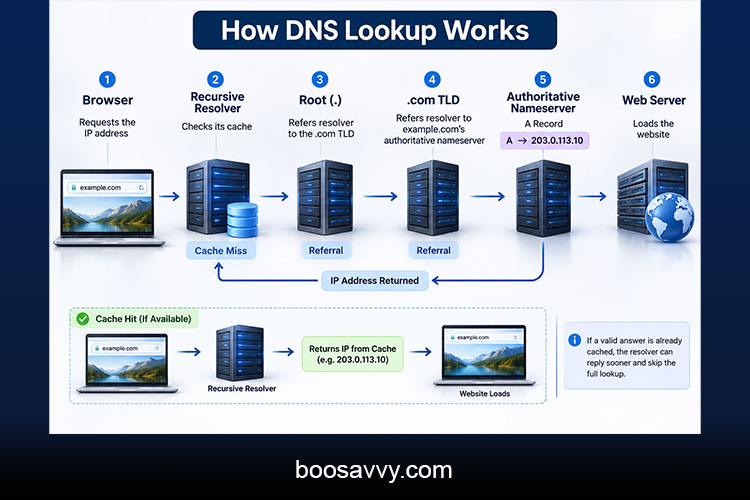
When you go to a website your device will query a DNS resolver (usually your ISP or a public resolver) to find out the IP address of the domain. If the resolver doesn’t already know the IP address it will query a root server, then the server for the TLD (the .com in this case), and then your domain’s authoritative nameserver which will hold your DNS records and give you the answer.
Why Caching Matters
Resolvers will remember the answer for a period of time to avoid having to go through the whole resolution process again. That caching is what makes browsing so fast, and it’s also why DNS changes don’t show up everywhere immediately.
Anatomy of a DNS Record
The Five Common Fields
Most records share the same basic parts:
- Name (or host): The domain or subdomain the record applies to (e.g. @ for the root domain or www)
- Type: The kind of record, such as A, CNAME or MX
- Value (or target): Where the record points, such as an IP address or another hostname
- TTL: Time to live, how long resolvers may cache the answer, in seconds
- Priority: Used by some records, such as MX, to rank options
Where Records Live
Your records are stored in a DNS zone at whichever DNS service your nameservers point to (this could be your registrar, your web host or a third party DNS provider). Only one place at any one time controls your live DNS and that’s a very common point of confusion.
The Most Common DNS Record Types
A and AAAA Records
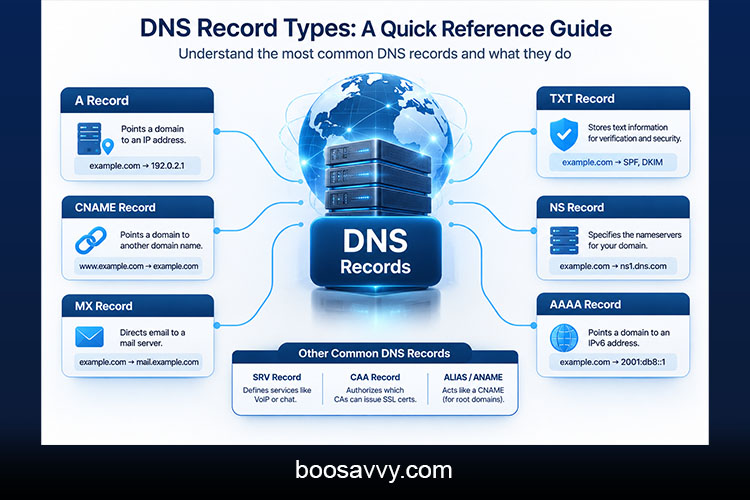
An A record will point a name to an IPv4 address (e.g. 192.0.2.1). An AAAA record does the same for the IPv6 format. Those are the records which send the visitor to your website’s server.
CNAME Records
A CNAME record makes one name an alias of another. For instance www could be a CNAME pointing to example.com. It’s useful when a service gives you a hostname which may have a different IP address underneath.
MX Records
MX (mail exchange) records tell the internet which servers will receive email for your domain. Each one has a priority number and the lower the number the higher the priority.
TXT Records
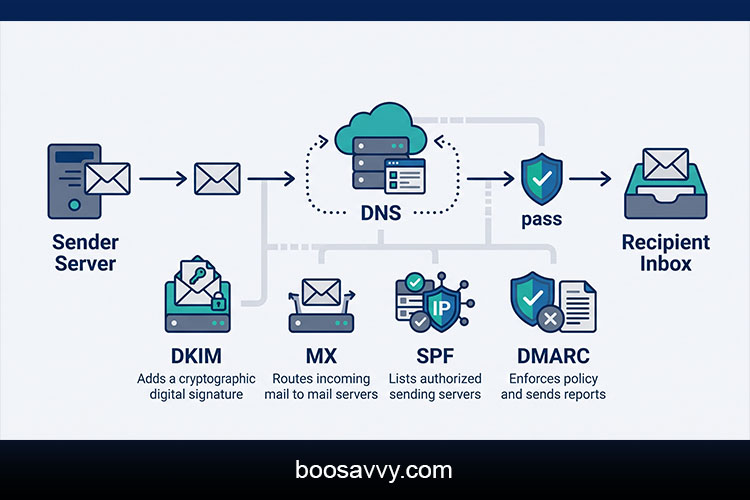
TXT records store text. They’re used all the time to prove domain ownership and to publish email security policies (such as SPF, DKIM and DMARC).
NS Records
NS records contain the nameservers that are the authoritative nameservers for your domain. If you change them you’re effectively handing control of your entire DNS zone over to a different provider.
| A | Points a name to an IPv4 address | 192.0.2.1 |
| AAAA | Points a name to an IPv6 address | 2001:db8::1 |
| CNAME | Makes one name an alias of another | example.com |
| MX | Routes email to mail servers | mail.example.com (priority 10) |
| TXT | Stores text for verification and email security | v=spf1 include:_spf.example.com ~all |
| NS | Names the authoritative nameservers | ns1.dnsprovider.com |
Less Common but Important Records
SOA Records
The start of the authority record contains the administrative details for the zone (the primary nameserver, the refresh timers etc). Most providers will create this automatically.
PTR Records
PTR records do reverse lookups (take an IP address and turn it back into a name). Mail servers will often do this as part of their checking to see if the sender appears to be legitimate.
SRV and CAA Records
SRV records tell the applications where to find the various services (e.g. chat, calling etc). CAA records tell the certificate authorities which ones are permitted to issue an SSL certificate for your domain, which is a form of protection.
DNS Records for Email: MX, SPF, DKIM and DMARC
MX Records Deliver Mail
Without the correct MX records then incoming email has no where to go. If you’re using a service such as Google Workspace or Microsoft 365 you’ll be given the exact MX values to add.
SPF, DKIM and DMARC Protect Your Reputation
These three TXT records work in concert. SPF lists the servers which are permitted to send email on your behalf. DKIM adds a digital signature which proves the message hasn’t been altered. DMARC tells the receiving server what to do if a message fails SPF/DKIM checks and where to send the reports. Taken together they reduce spoofing and help your genuine messages get into the inbox rather than the spam folder.
One Rule to Remember
A domain should have just one SPF record. If you’re using more than one email service then you’ll need to combine those into a single record rather than have two separate ones as multiple SPF records can lead to failures.
A Record vs CNAME: When to Use Each
Use an A Record When
You know the server’s IP address and you want to point your root domain or a subdomain directly at it. That’s the usual scenario when you’re hosting a website on a server with a fixed IP.
Use a CNAME When
You want a subdomain to point to another hostname (e.g. shop.example.com pointing to the address of a store platform). The key thing to bear in mind is that a CNAME generally can’t co-exist on the root domain with other records, so you’d use an A record there or check with your provider as to whether they have an ALIAS or ‘flattened’ CNAME option.
Understanding TTL and DNS Propagation
What TTL Does
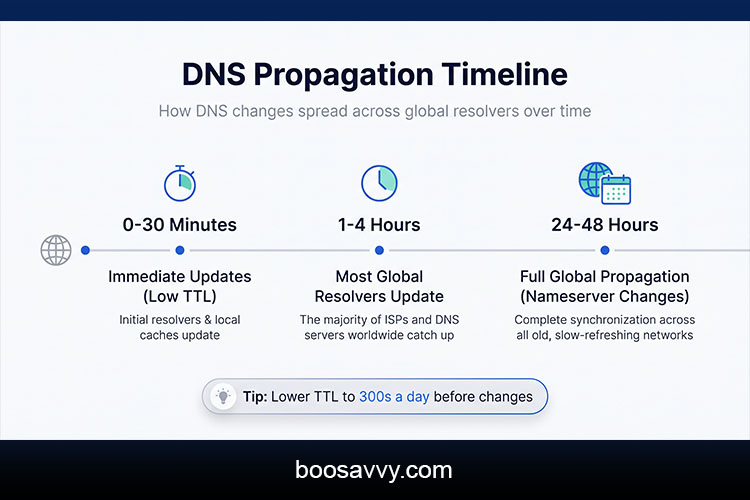
TTL tells the resolver how long to keep a cached answer for. The default is often 3600 seconds (one hour). A short TTL means changes propagate more quickly but will result in more lookups. A long TTL will reduce the number of lookups but will mean that changes are not reflected for longer.
How long does propagation take?
Propagation is the time it takes for the resolvers out there to pick up your updated records. A lot of changes will be reflected within minutes to a few hours but in some cases it can take as long as 24 to 48 hours (particularly if you’re doing a nameserver change). Reducing your TTL a day prior to a planned move will of course make the move much smoother.
How to Add or Edit DNS Records
The General Steps
The screens differ by provider, but the process is similar everywhere:
- Log in to the account that controls your nameservers
- Open the DNS or DNS zone editor for your domain
- Choose Add Record and pick the type
- Enter the name, value and TTL exactly as provided
- Save, then wait for propagation and test
Example Setup for a Typical Website
Here’s a simple zone for a site with email, using placeholder values.
| @ | A | 192.0.2.1 | Points the root domain to your web server |
| www | CNAME | example.com | Sends www traffic to the same site |
| @ | MX | mail.example.com (priority 10) | Delivers email |
| @ | TXT | v=spf1 include:_spf.example.com ~all | Authorizes email senders |
| _dmarc | TXT | v=DMARC1; p=none | Sets the email policy |
Common DNS Mistakes and How to Fix Them
Editing the Wrong Zone
If your nameservers point to your host then any changes you make at your registrar will be ignored. Check which nameservers are active before you go and edit anything.
Typos and Trailing Dots
A missing character in an IP or hostname will break the record. Some systems insist on a trailing dot on fully qualified names, others will add it in automatically so you need to adhere to the provider’s format.
Conflicting Records
You can’t place a CNAME on the same name as other records (e.g. MX) and duplicate SPF records are a problem. Resolve any conflicts first before adding in the new records.
Forgetting to Copy Old Records
When changing DNS providers, it’s a good idea to export or take screenshots of your existing records. The most common cause of email stopping working after a change is missing MX or TXT records.
Best Practices for DNS Management
Keep a Backup and Document Changes
Save a copy of your full DNS zone and note why each record is there. It’ll save you hours if/when something breaks or a member of the team goes and changes it.
Lower TTL Before Big Changes
Reduce the TTL to 300 seconds a day prior to migrating the site, then increase it again afterwards.
Secure Your Domain Account
Turn on two factor auth and registrar locks. If someone controls your DNS they can control where your traffic and email goes. Think about CAA records and DNSSEC where your provider will allow it.
Remove Unused Records
Old records relating to retired services can present a security risk so they need to be cleaned up on a regular basis.
Tools for Checking DNS Records
Free tools are available to verify your setup. Command line tools such as nslookup and dig will tell you what a nameserver returns and online DNS checkers will show you the records from a number of locations at the same time which is useful for seeing propagation. Check your A, MX and TXT records after every change.
Conclusion
So what are DNS records? They’re the instructions that link your domain to your website, your email and all the other services that rely on it. The key record types are A, AAAA, CNAME, MX, TXT and NS. You need to know about TTL and propagation and of course always backup your zone before you do anything. With that knowledge, things like moving to a new host, setting up business email, domain verification etc all become manageable. Change things one at a time, test each change and keep a record of what you’ve done and you’ll keep your domain running perfectly.
FAQs
What are DNS records in simple terms?
DNS records are instructions stored on a DNS server that tell the internet where to send traffic for your domain, such as to your website or your email provider.
What are the most common types of DNS records?
The most common are A, AAAA, CNAME, MX, TXT and NS records.
What is the difference between an A record and a CNAME?
An A record directs a domain name to an IP address, while a CNAME links one hostname to another, functioning as an alias.
How long do DNS changes take to update?
Often minutes to a few hours, but it can take up to 24 to 48 hours, especially when you change nameservers.
What is TTL in DNS?
Time to live is how long, in seconds, resolvers may cache a record before checking for updates.
What is an MX record used for?
It tells the internet which mail servers receive email for your domain, with priority numbers to rank them.
Why do I need SPF, DKIM and DMARC records?
They verify that your emails are legitimate, reduce spoofing and improve the chance your messages reach the inbox.
Where do I find my DNS records?
In the DNS or zone editor of whichever service your nameservers point to, such as your registrar or web host.
Can I have more than one SPF record?
No. A domain should have a single SPF record, so combine all authorized senders into one.
How can I check if my DNS records are correct?
Use tools such as nslookup, dig or an online DNS checker to compare what servers return with the records you intended.