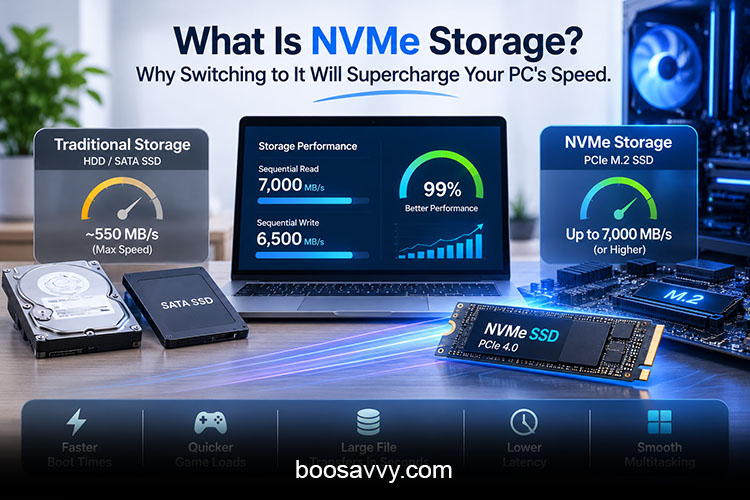
If your PC is taking ages to boot, games are taking forever to load, and large files just won’t move across the drive, then your storage is likely the bottleneck. A lot of people will simply go and upgrade the CPU or add more RAM when, in fact, the real solution is a faster drive. So what exactly is NVMe storage, and why do so many tech reviewers refer to it as the single most noticeable upgrade you can make to an older PC? This guide is going to explain what NVMe is in simple terms, show you just how much faster it actually is and walk you through the process of making the switch.
Also Read: Bluehost vs A2 Hosting: Avoid These Costly Hosting Mistakes
What Is NVMe Storage?
A Simple Definition
NVMe is Non-Volatile Memory Express. It’s a protocol (a set of rules) that allows your computer to talk to an SSD over the PCIe connection (the same high-speed ‘ highway’ that the graphics card uses). An NVMe drive is therefore an SSD that’s been built to take the faster route via PCIe rather than the older SATA cable.
Why NVMe Was Created
Hard drives and the early SSDs used an interface standard that was designed for spinning platters. Flash could do lots of things at once, but the old interface meant it had to queue up. NVMe was designed specifically for flash and removes that queuing bottleneck.
How NVMe Works: PCIe Lanes and Parallel Queues
The SATA Bottleneck
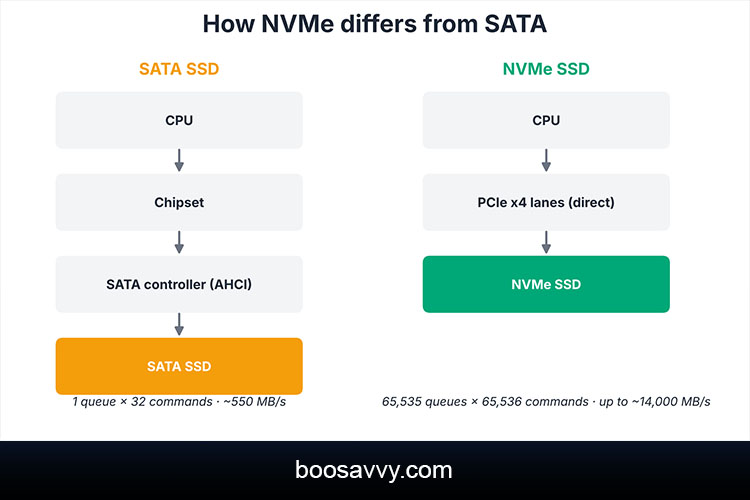
SATA (the interface used by most of the older SSDs and HDDS) is limited to around 550-560mb/s. It also uses a single command queue of 32 commands, which is perfectly adequate for a spinning disk but is a massive waste of bandwidth for fast flash memory.
The NVMe Design
NVMe connects the drive directly to the CPU via PCIe lanes (typically four of them). It supports up to 65,535 queues (each of which can hold up to 65,536 commands), so it can handle a large number of requests at any one time. The net effect is higher throughput, lower latency and better performance in the case of a large number of small operations being performed at once (e.g. booting Windows, loading a game).
NVMe vs SATA SSD vs HDD: Speed Compared
Sequential Speed
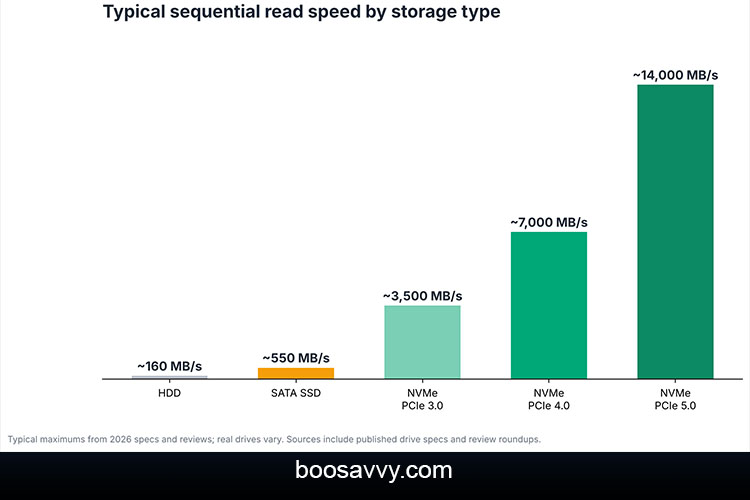
Here’s how the main drive types stack up in 2026 (based on published specs and reviews), with the figures being typical maximums, as such drives will vary in reality.
| HDD (7,200 RPM) | About 100–290 MB/s | Around 100 | About 10 ms |
| SATA SSD | About 550–560 MB/s | About 90,000–100,000 | About 100 µs |
| NVMe PCIe 3.0 | About 3,500 MB/s | About 400,000–500,000 | About 30 µs |
| NVMe PCIe 4.0 | About 7,000–7,450 MB/s | Around 1,000,000 | About 10–15 µs |
| NVMe PCIe 5.0 | About 14,000–14,800 MB/s | 1,500,000 or more | About 5–15 µs |
Random Performance and Latency
Sequential speed matters when you’re copying large files. Day-to-day usage is all about random reads and low latency, though. An HDD takes milliseconds to find the data you’re looking for; an NVMe drive takes microseconds. That’s why a PC with an NVMe drive feels so responsive even when you’re just opening folders and apps.
PCIe Generations Explained
Gen 3, Gen 4 and Gen 5
Each PCIe generation roughly doubles the bandwidth. Gen 3 NVMe is around 3.5 GB/s, Gen 4 is around 7 GB/s, and Gen 5 is around 14 GB/s. Gen 4 is the current mainstream and offers the best value; Gen 5 is the premium option.
Do you need Gen 5?
Probably not. Reviewers point out that the jump from a good Gen 4 drive to a flagship Gen 5 is a case of diminishing returns in all but the purest sequential transfers. Gen 5 drives can also run hotter and are more expensive per GB. Also bear in mind that a faster drive in a slower slot will still work (it just works at the speed of the slot), so a PCIe 4.0 drive in a PCIe 3.0 slot will run at the slower speed.
NVMe Form Factors: M.2, U.2 and Add-In Cards
M.2: The Common Choice
Most consumer NVMe drives are the small M.2 sticks that just slot straight into the board with no cables. The most common size is 2280 (80mm); 2242 and 22110 are also available, so check what your board supports.
Watch the Slot Type
Not all M.2 slots support NVMe. Some only support SATA-based M.2 drives, so you’ll need to check your motherboard or laptop manual. NVMe is also available as U.2 drives and as PCIe add-in cards for servers and workstations.
Real-World Speed Gains
Boot Times and App Launches
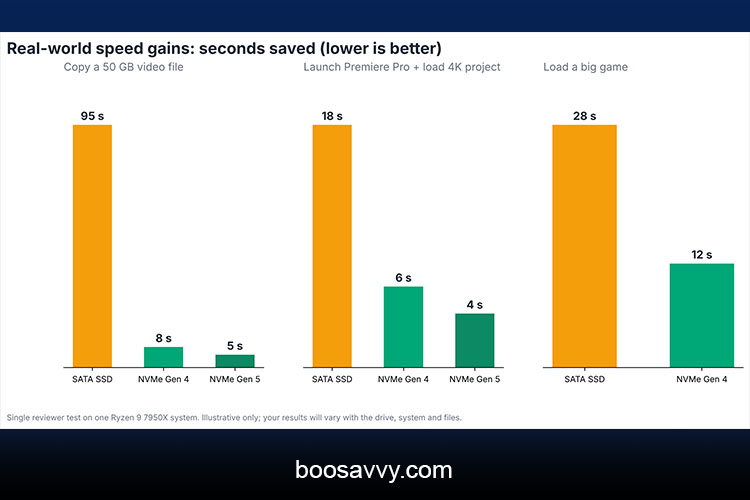
The benchmarks are impressive, but what does it actually feel like? In one of the reviewer’s tests on the same system, Premiere Pro + a 4K project took 18 seconds to launch on a SATA SSD, 6 seconds on a PCIe 4.0 NVMe and 4 seconds on a PCIe 5.0.
Game Loads and File Copies
The same test measured a 50GB video file at 95 seconds on SATA, 8 seconds on Gen 4 NVMe and 5 seconds on Gen 5. A game that took 28 seconds to load from SATA took 12 seconds from Gen 4 NVMe. These figures are from a single review and are purely illustrative. The jump from HDD to any SSD is massive; NVMe then provides a further improvement for large files and heavy workloads.
Is NVMe Worth It? Who Benefits Most
Gamers and Creators
Gamers will benefit from shorter loading screens and faster asset streaming. Video editors, photographers, and 3D artists will see the biggest benefits, as they’re the ones moving the largest files and scrubbing through the highest-resolution footage.
Everyday Users
If you’re primarily browsing, streaming, and using office apps, then the difference between SATA and NVMe is pretty minimal (though you will still see noticeably snappier boots and installs). An upgrade from an HDD is definitely worthwhile for anyone.
Servers and Hosting
Many web hosts use NVMe because it speeds up database queries and file operations. That’s why you’ll often see NVMe storage as an option on hosting plans.
Drawbacks and Limits of NVMe
Heat and Throttling
Fast drives generate heat. As the reviewers point out, if the temperature gets above the 70 to 85c mark, you’ll get throttling, so heatsinks are recommended for Gen 4 and Gen 5 drives during long transfers.
Cost per Terabyte
NVMe is generally more expensive per gigabyte than SATA, and hard drives are still by a long way the cheaper option per terabyte for bulk storage. Prices have been all over the place in 2026, so you’re best off looking at current listings rather than any old prices.
Diminishing Returns
If your usage is primarily browsing and light gaming, then Gen 5 speeds won’t really make a difference in your day-to-day. You’ll only really notice the difference in where you’re spending your time.
Will NVMe Work in Your PC? Compatibility Checklist
What to Check
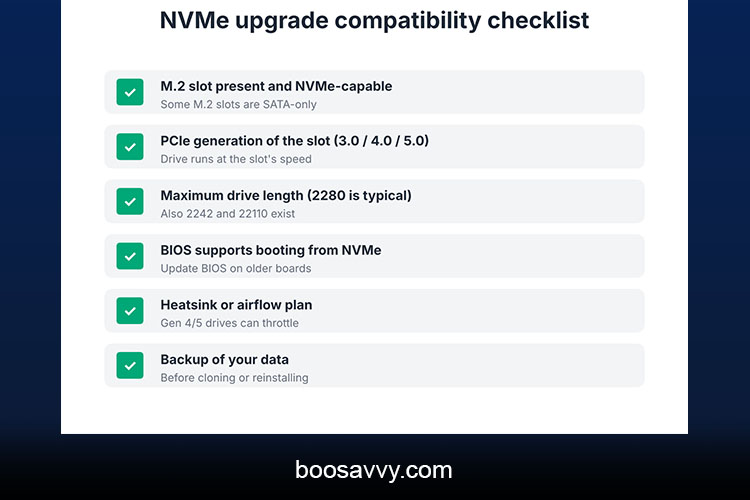
Before you buy, check four things: that your motherboard (or laptop) has an M.2 slot that supports NVMe, what PCIe generation the slot supports, the longest drive length it will accept, and whether the BIOS will allow you to boot from NVMe. Some older systems may require a BIOS update or a PCIe adapter card.
What If You Have No M.2 Slot?
A PCIe-to-M.2 adapter card can add NVMe support to many desktops (though boot support on very old boards is by no means guaranteed). If your laptop doesn’t have a slot, then a SATA SSD is probably the way to go.
How to Switch to NVMe: Step by Step
1. Choose the Right Drive
Pick a drive that matches your slot’s PCIe generation. A Gen 4 drive is the sweet spot for most buyers.
2. Back Up Your Data
Copy the important files onto an external drive or cloud storage before you do anything else.
3. Install the Drive
Turn off your PC, locate the M.2 slot, insert the drive at an angle, press it down, and fasten it with the screw. Install a heatsink if one is provided or recommended.
4. Move Windows
You can either duplicate your existing drive with cloning software or install Windows fresh on the new drive. A clean installation often delivers better performance by removing unnecessary old files and clutter.
5. Verify the Speed
Use a free benchmark tool to confirm the drive is running at its expected speed and to check the temperatures during a large transfer.
Choosing the Right NVMe Drive
Capacity, Endurance and Features
Look at capacity first, then endurance (in TBW). Consumer drives are typically rated at 300 to 600 TBW per TB of capacity, which is about ten years of normal use. A DRAM cache and a heatsink will both help with sustained performance.
| Boot Windows and launch apps quickly | PCIe 4.0 NVMe |
| Edit 4K video or move huge files | PCIe 4.0 or 5.0 NVMe with heatsink |
| Add a cheap second drive in an older PC | SATA SSD |
| Store backups and media archives | HDD |
Conclusion
So what is NVMe storage? It’s a modern SSD interface that connects your flash memory directly to your processor via PCIe, which is much faster than SATA and has dramatically lower latency than a hard drive. For the vast majority of people, a PCIe 4.0 NVMe drive is the ideal compromise between speed, price and compatibility.
Gen 5 is only worth looking at if you’re doing very demanding creative or professional work. Check your motherboard to see if it has a compatible M.2 slot, back up your data, and you’ll be very much happier with the performance (faster boots, faster loads, faster file transfers). If you’re still running on a hard drive, then upgrading to NVMe is one of the most satisfying things you can do.
FAQs
1. What is NVMe storage in simple terms?
NVMe is a fast way for an SSD to communicate with your computer over PCIe, making it much quicker than older SATA drives.
2. What does NVMe stand for?
Non-Volatile Memory Express.
3. Is NVMe the same as SSD?
No. An SSD is a type of drive. NVMe is a protocol and interface that many SSDs use. SATA SSDs also exist and are slower.
4. How much faster is NVMe than SATA?
SATA SSDs top out around 550-560 MB/s, while Gen 4 NVMe reaches about 7,000 MB/s and Gen 5 about 14,000 MB/s.
5. Is NVMe worth it for gaming?
Yes, for faster load times and asset streaming, although the difference between Gen 4 and Gen 5 is small in most games.
6. Will an NVMe drive work in my PC?
Only if your motherboard or laptop has a compatible M.2 or PCIe slot and supports booting from NVMe; check your manual.
7. Does NVMe get hot?
Yes, especially Gen 4 and Gen 5 drives under sustained loads. A heatsink helps prevent throttling.
8. Can I use a PCIe 4.0 NVMe drive in a PCIe 3.0 slot?
Yes. It will work at the slower slot’s speed.
9. How long do NVMe drives last?
Consumer drives are commonly rated for 300 to 600 TBW per terabyte, which equals roughly ten years of normal use.
10. Is NVMe better than an HDD?
For speed, yes, by a huge margin. HDDs are still cheaper per terabyte, so they remain useful for backups and archives.